Backuply von Softaculous ist ein Backup-Plugin, das für Backups, Wiederherstellungen, Migrationen und das Klonen von Websites entwickelt wurde – außerdem gibt es eine Version auf Serverebene für cPanel-, Webuzo-, DirectAdmin- und Virtualizor-Umgebungen.
Backuply Server Side (Backuply Server Pro)
-
Ein serverseitiges Plugin, das sich in Softaculous auf Hosting-Control-Panels wie cPanel, DirectAdmin und Webuzo integrieren lässt.
-
Wird standardmäßig bei neuen Softaculous-Installationen mitinstalliert (bei Verwendung einer Premium-Lizenz); bei bestehenden Installationen ist eine manuelle Aktivierung erforderlich.
-
Ermöglicht vollständige oder teilweise Backups aller Benutzerkonten auf dem Server, unterstützt lokale und Remote- Backups, komprimierte und inkrementelle Backups sowie eine zentralisierte Admin-/Benutzerkonfiguration. Backuply Server ist kostenlos in Softaculous-Premium-Lizenzen enthalten
So stellen Sie ein Backup mit Backuply wieder her (Schritt für Schritt)
Schritt 1. Melden Sie sich über eine der folgenden URLs bei Ihrem Control Panel an: https://server-name.com:2222, https://domain-name.com:2222 und suchen Sie das Backuply-Symbol mit dem Namen Backuply Incremental Backups.
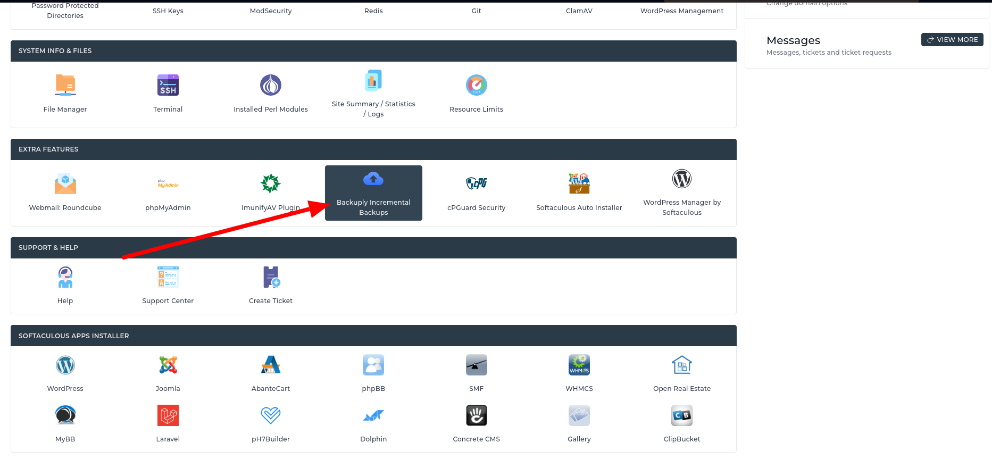
Schritt 2. Wählen Sie aus, was Sie wiederherstellen möchten – Dateien, Datenbank, E-Mails, Cron-Jobs oder Sonstiges.
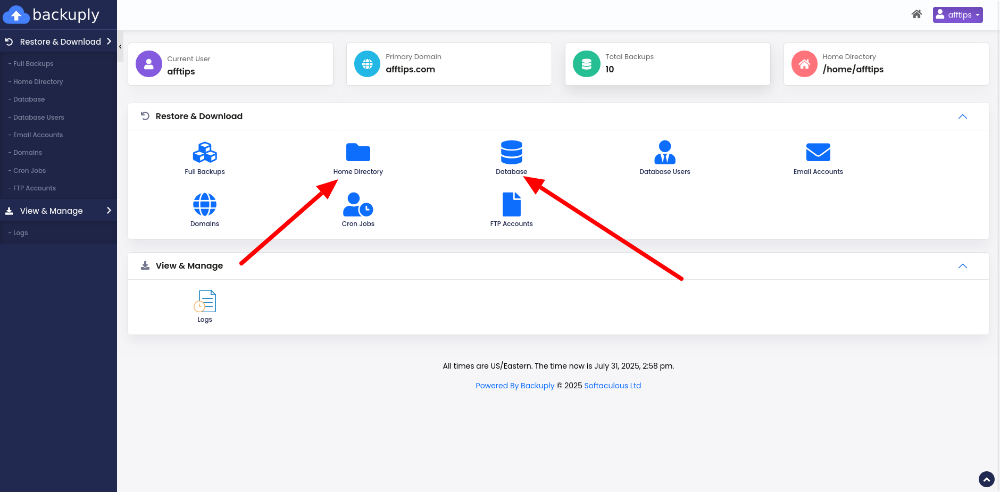
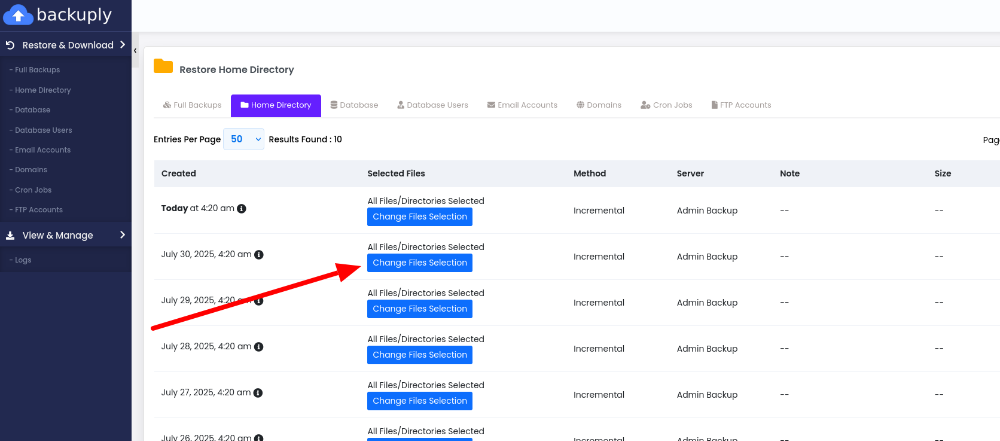
Schritt 3. Wenn Sie Dateien von Ihrer Website wiederherstellen möchten, gehen Sie zu Home-Verzeichnis und wählen Sie das genaue Datum des Archivs aus. Klicken Sie anschließend auf Dateiauswahl ändern.
Schritt 4. Wählen Sie nun das gewünschte Verzeichnis/den gewünschten Ordner oder die gewünschte Datei aus der Liste aus.
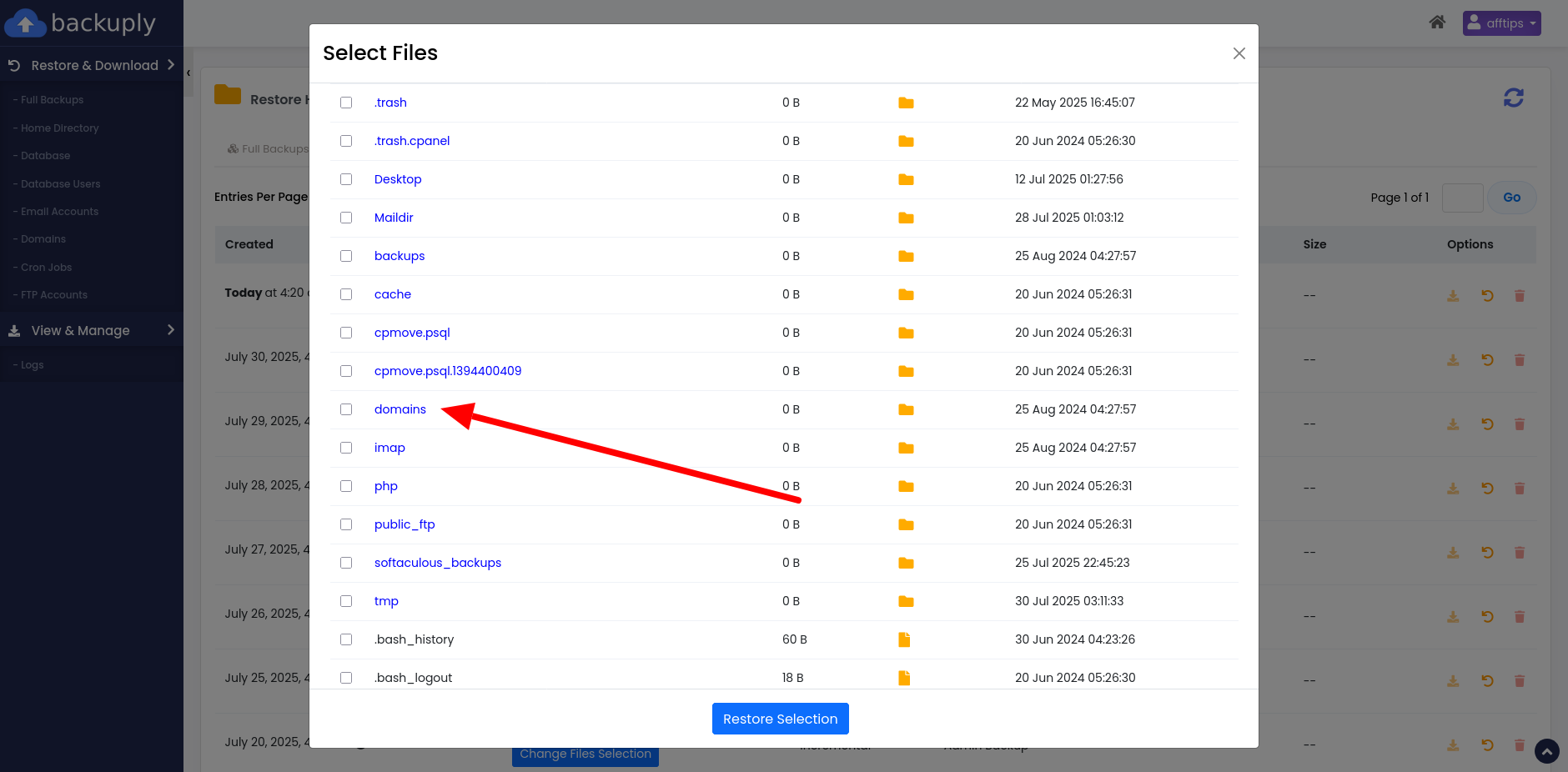
Hinweis: Wählen Sie aus dem Verzeichnis „public_html“ nur das gewünschte Verzeichnis/den gewünschten Ordner oder die gewünschte(n) Datei(en) aus, nicht den gesamten Domain-Ordner. Je tiefer in der Verzeichnisstruktur die ausgewählte Datei oder der ausgewählte Ordner liegt, desto reibungsloser verläuft der Vorgang. In unserem Beispiel haben wir den Ordner „Plugins“ ausgewählt.
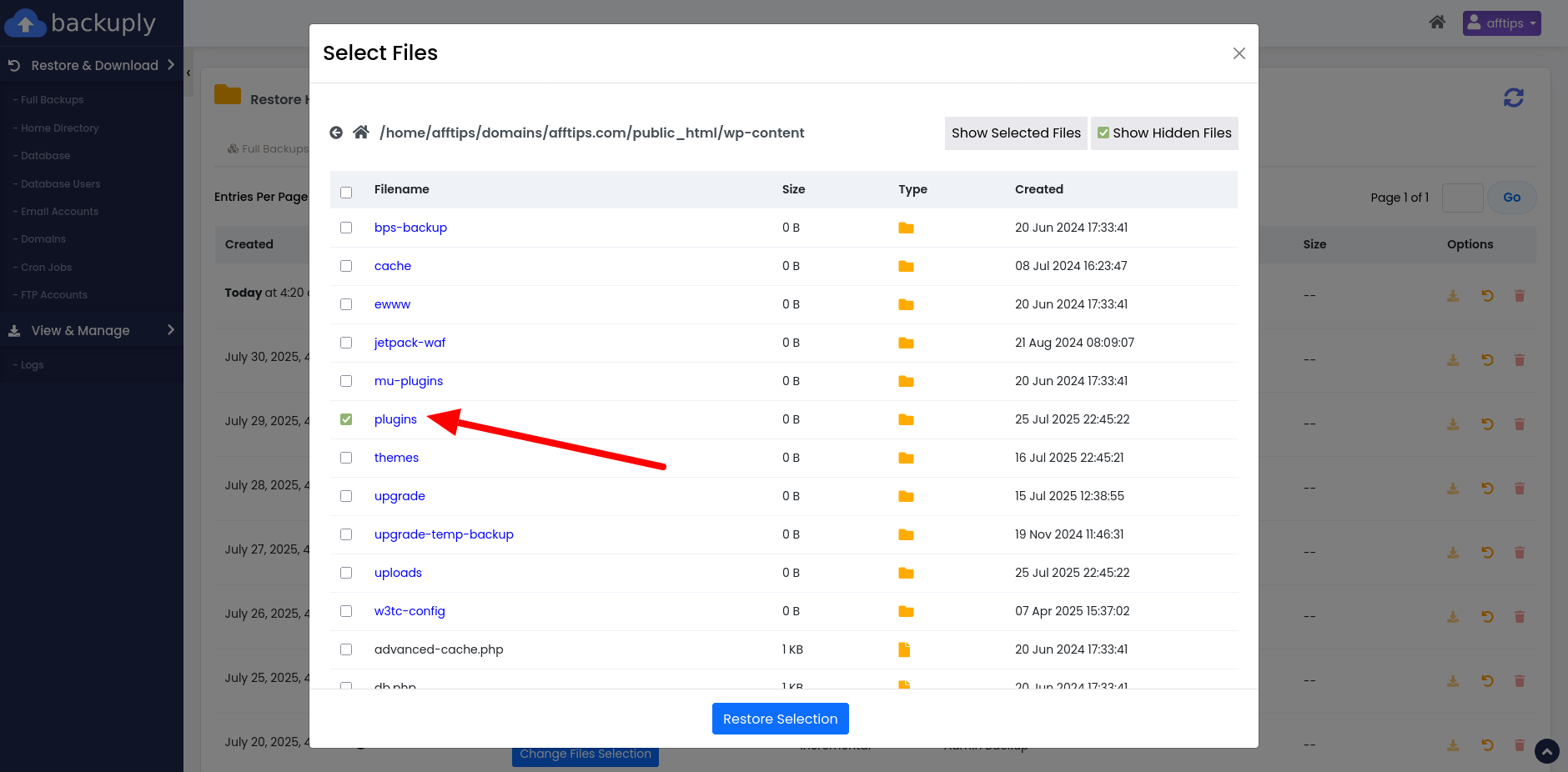
Schritt 5. Wenn Sie die Datei oder den Ordner aus dem gewünschten Datum ausgewählt haben, klicken Sie auf Auswahl wiederherstellen.
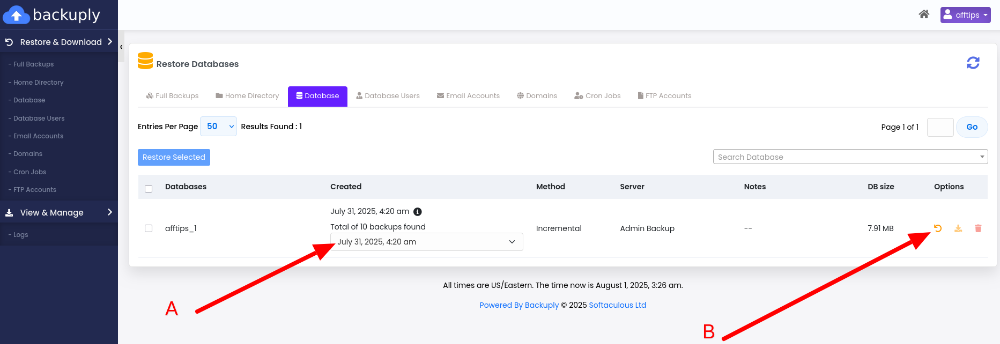
Schritt 6. Das Gleiche können Sie mit der Datenbank tun: A – Wählen Sie ein Datum aus; B – Stellen Sie die Daten ab dem ausgewählten Datum wieder her.
Schritt 7. Nun haben Sie Ihre Website-Dateien und Ihre Datenbank wiederhergestellt. Um sicherzustellen, dass alles reibungslos verlaufen ist, gehen Sie zu „Protokolle“ und überprüfen Sie den Status Ihres Vorgangs.
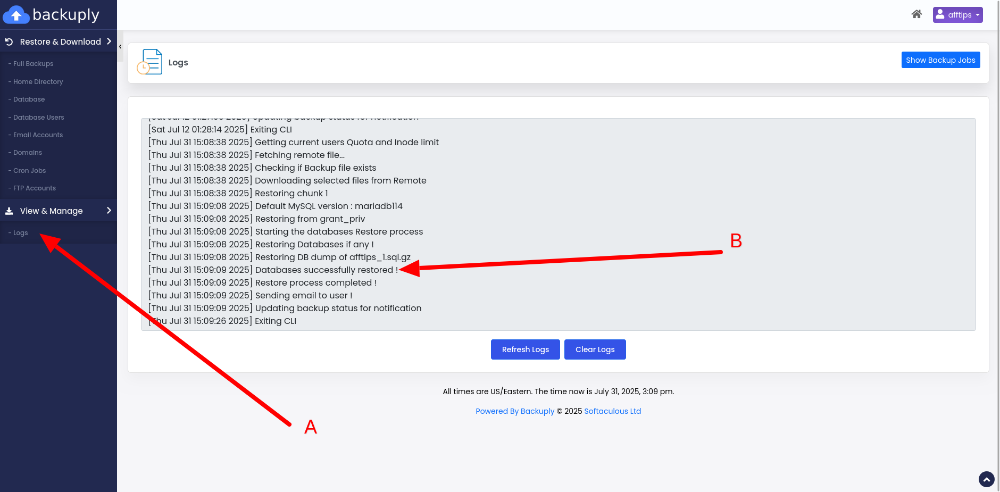
Nun haben Sie alles wiederhergestellt, was Sie wollten, und alles sollte einwandfrei funktionieren.
Außerdem können Sie weitere Elemente aus Backuply wiederherstellen: E-Mail-Konten, Datenbankbenutzer, Cron-Jobs, FTP-Konten.
Viel Erfolg bei der Wiederherstellung. ;)