Wenn Sie Ihre Website auf einen Hosting-Tarif bei uns migrieren möchten, müssen Sie wahrscheinlich auch Ihre E-Mails auf die entsprechende Domain umziehen. Wir bieten ein praktisches Tool, mit dem Sie dies in wenigen einfachen Schritten erledigen können. Bevor wir jedoch mit der Migration beginnen, müssen Sie hier in Ihrem neuen Hosting-Tarif ein E-Mail-Konto anlegen.
So funktioniert es: So erstellen Sie ein E-Mail-Konto in DirectAdmin
Wenn Sie nur E-Mails übertragen möchten, müssen Sie die Domain vor dem E-Mail-Konto anlegen. Es ist nicht möglich, ein E-Mail-Konto für eine bestimmte Domain zu erstellen, wenn diese in Ihrem Konto nicht existiert. Sobald wir bereit sind, das E-Mail-Konto anzulegen, und über die erforderlichen Daten verfügen, gehen Sie zum Menü IMAPSync-Migrationen.
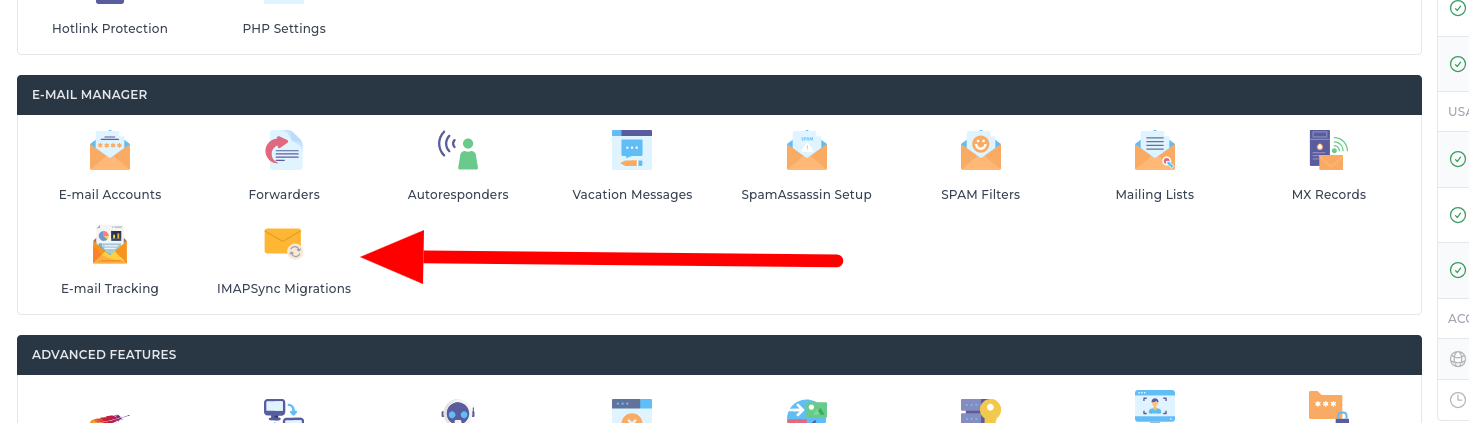
Nun ist es an der Zeit, die einzelnen Schritte durchzugehen und die Migration durchzuführen:
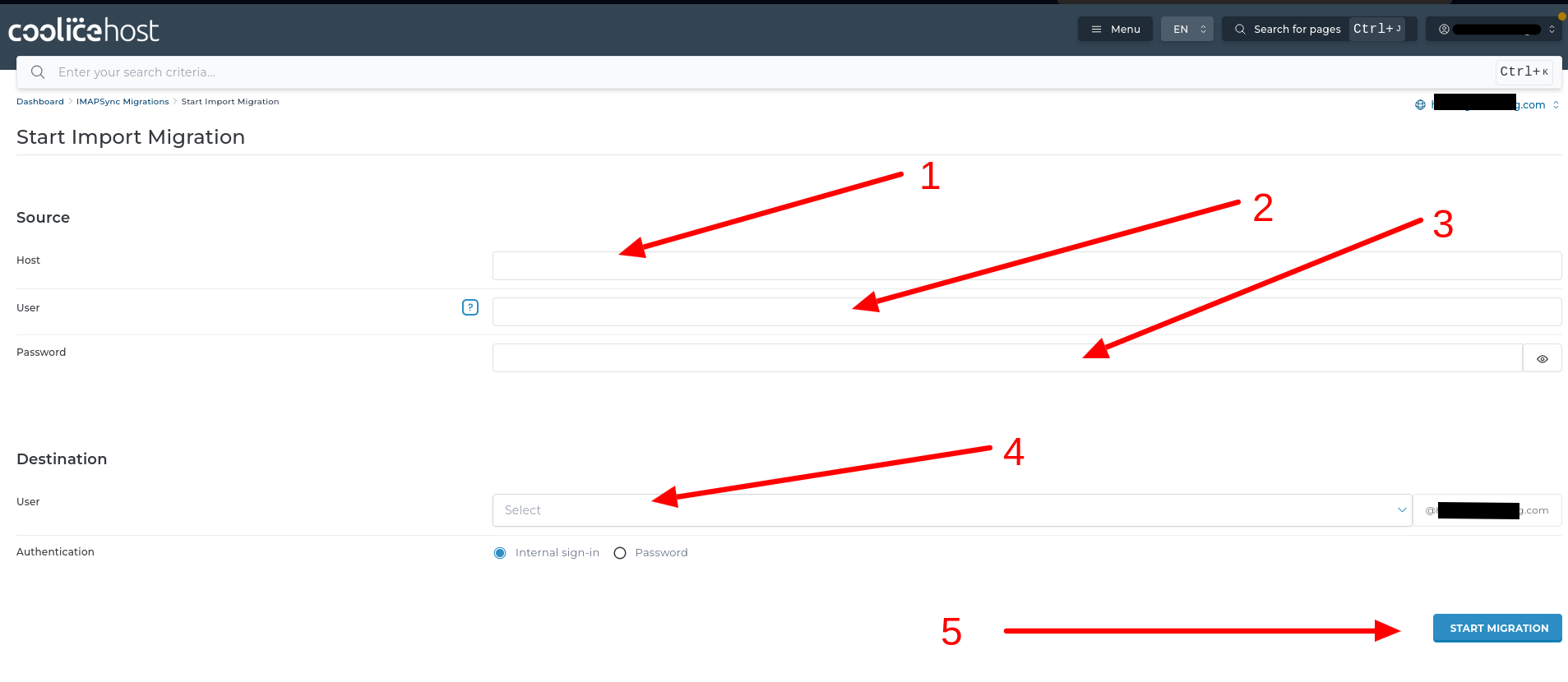
- Geben Sie den Hostnamen bzw. den Namen des E-Mail-Servers ein. Zum Beispiel: zen1.coolice.host, mail.domain.com
- Geben Sie den Benutzer ein. Zum Beispiel: info@, sales@, office@ und so weiter.
- Geben Sie das Passwort Ihres aktuellen E-Mail-Kontos am alten Standort ein. Nicht das Passwort des neu bei uns erstellten E-Mail-Kontos.
- Wählen Sie aus dem Dropdown-Menü aus, in welches E-Mail-Konto die E-Mails importiert werden sollen. Überprüfen Sie rechts, ob die Domain mit der übereinstimmt, an die die E-Mails gesendet werden sollen. Falls es nicht die gewünschte Domain ist, ändern Sie diese oben rechts und setzen Sie den Vorgang fort.
5. Klicken Sie auf START MIGRATION
Beachten Sie, dass der Vorgang je nach Größe des E-Mail-Kontos einige Zeit in Anspruch nehmen kann. Größere Konten (mehrere GB) benötigen länger. Warten Sie, bis der Vorgang abgeschlossen ist, und überprüfen Sie dann das E-Mail-Konto.
Wenn Sie das Konto mit einem E-Mail-Client oder einer mobilen App verbinden möchten, gehen Sie wie folgt vor: Wie füge ich mein Workspace-E-Mail-Konto zur Gmail-App auf Android hinzu?
Wir wünschen Ihnen viel Erfolg.